


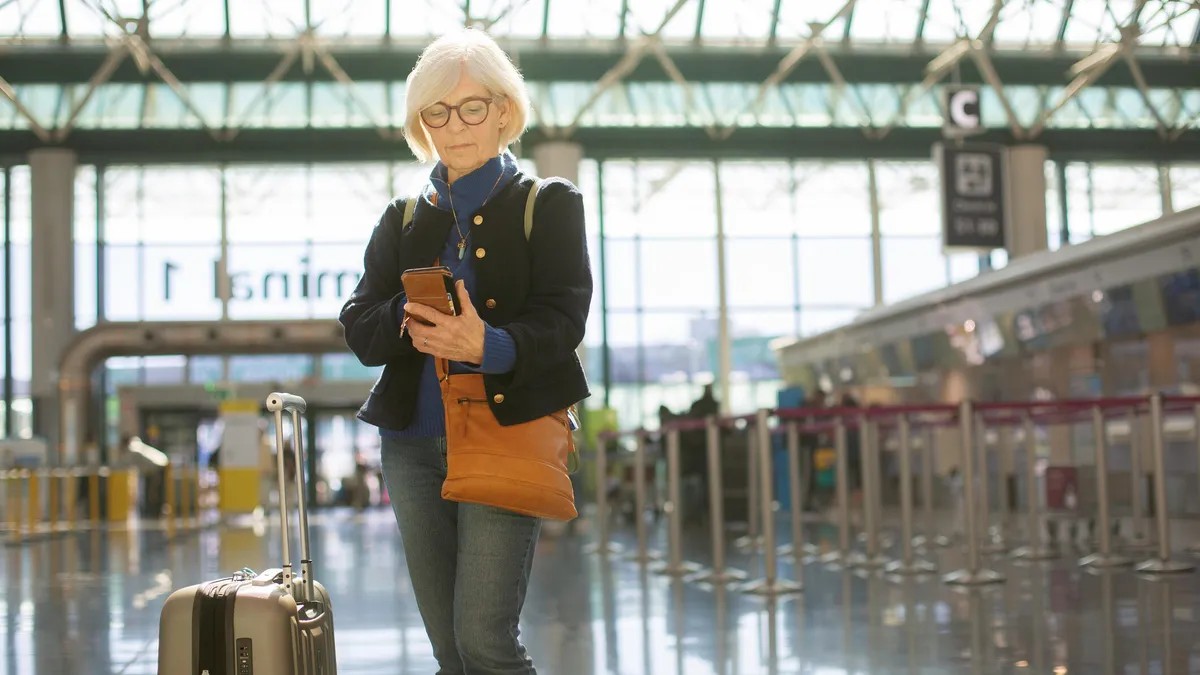
Travel is inherently stressful: dealing with airports, crowds, and delays is enough to fray anyone’s nerves. Your iPhone should help you relax, not add to the chaos with constant work emails and notifications. Fortunately, Apple’s Focus Modes offer a powerful, often overlooked solution for a more peaceful journey.
This isn’t just a souped-up “Do Not Disturb.” You can create custom profiles—like a dedicated “Travel Mode”—that filters distractions and delivers only essential info when you need it. Here’s how to configure it for maximum relaxation.
Building Your Custom Travel Focus Mode
iOS Focus Modes have been around for a while, offering presets like Work, Sleep, and Fitness. The core idea is simple: you decide what breaks through the noise. But for travel, a tailored approach is best.
- Create the Focus: Go to Settings > Focus and tap the “+” button. Name it something clear, like “Travel Mode” or “Vacation,” and choose an appropriate icon (a suitcase or airplane works well).
- Manage Notifications: Select which apps and contacts can reach you during travel, silencing the rest. Under People, allow only essential contacts (family, travel companions, pet sitters) while enabling repeated calls from anyone in case of emergencies.
- App Control: Enable notifications from critical apps like airline apps, Maps, Find My, and international messaging apps. If you’re intentionally disconnecting from work, silence productivity tools like Slack, Gmail, Outlook, and Calendar. The goal is precision: only what matters, when it matters.
Advanced Control: Custom Screens and Filters
For power users, Focus Modes become even more effective with custom Home Screens and app filters.
Linking to a Custom Home Screen
Designate a specific Home Screen for travel mode, like an “Airport Dashboard.” Edit your Home Screens by long-pressing a blank area until apps jiggle. Swipe to a new page, then populate it with:
- Flight Tracking: Airline apps or tools like Flighty.
- Location Tracking: Find My, especially for tracked luggage.
- Time Zones: A Clock widget for your destination.
- Documents: Notes widget with travel details and QR codes.
- Weather: The forecast for your destination.
Once saved, link this screen to your Travel Focus Mode via Settings > Focus > [Your Travel Mode] > Home Screen.
Using Focus Filters
Take control within apps. Even if an app isn’t entirely silenced, Focus Filters limit distractions. For example, in Mail, show only your personal inbox while hiding work accounts. In Calendar, display only personal events while suppressing work schedules.
To set up: Settings > Focus > [Your Travel Mode] > Focus Filters > Add Filter. Customize settings for each app accordingly.
Automating Your Travel Experience
Streamline the process with automations:
- Location-Based Activation: The Focus Mode activates when you arrive at the airport or hotel. Enable this in Settings > Focus > [Your Travel Mode] > Smart Activation.
- App-Based Activation: Trigger the mode when opening specific apps (streaming services, e-readers).
- Cross-Device Syncing: Enable “Share Across Devices” to automatically apply the Focus Mode to your iPad, Apple Watch, and MacBook.
Ultimately, the goal is seamless peace of mind. By customizing Focus Modes, you can ensure that your iPhone enhances, rather than detracts from, your travel experience.
The key is to fine-tune these settings to your exact preferences. Travel should be about disconnecting and enjoying the moment, and with a properly configured iPhone, that’s far more achievable.