



It is easy to let the Apple Watch become a passive accessory, relegated to checking notifications and screening calls. However, recent updates to WatchOS have transformed the device into a more proactive health companion and intuitive interface. Whether you are using a new Series 11, Ultra 3, or an older model running the latest software, optimizing your settings can significantly enhance your daily experience.
Here are nine essential tips to help you get the most out of your smartwatch.
Restore Quick Watch Face Switching
Many users miss the ability to swipe from the screen edge to switch watch faces—a feature Apple removed in WatchOS 10.0 to prevent accidental toggles. However, the standard method (long-press, swipe, tap) is cumbersome.
Fortunately, you can re-enable this shortcut. Navigate to Settings > Clock and toggle on Swipe to Switch Watch Face. This restores the quick transition between different faces, such as switching from a professional work layout to a fitness-focused display with a simple gesture.
Monitor Health Trends with Vitals
The Vitals app aggregates overnight health data to provide a comprehensive snapshot of your well-being. By wearing your watch to sleep, you can track heart rate, respiration, body temperature (on supported models), and sleep duration.
Why this matters: The app establishes a personal baseline for your health metrics. It flags “atypical” readings that deviate from your normal range, serving as an early warning system for potential issues like illness or stress. While not a medical diagnosis, these alerts can prompt timely check-ups.
Note: Blood oxygen data handling varies by model and region due to regulatory changes. On newer US models, this data may only appear in the iPhone Health app rather than the Watch Vitals app.
Decode Your Sleep Score
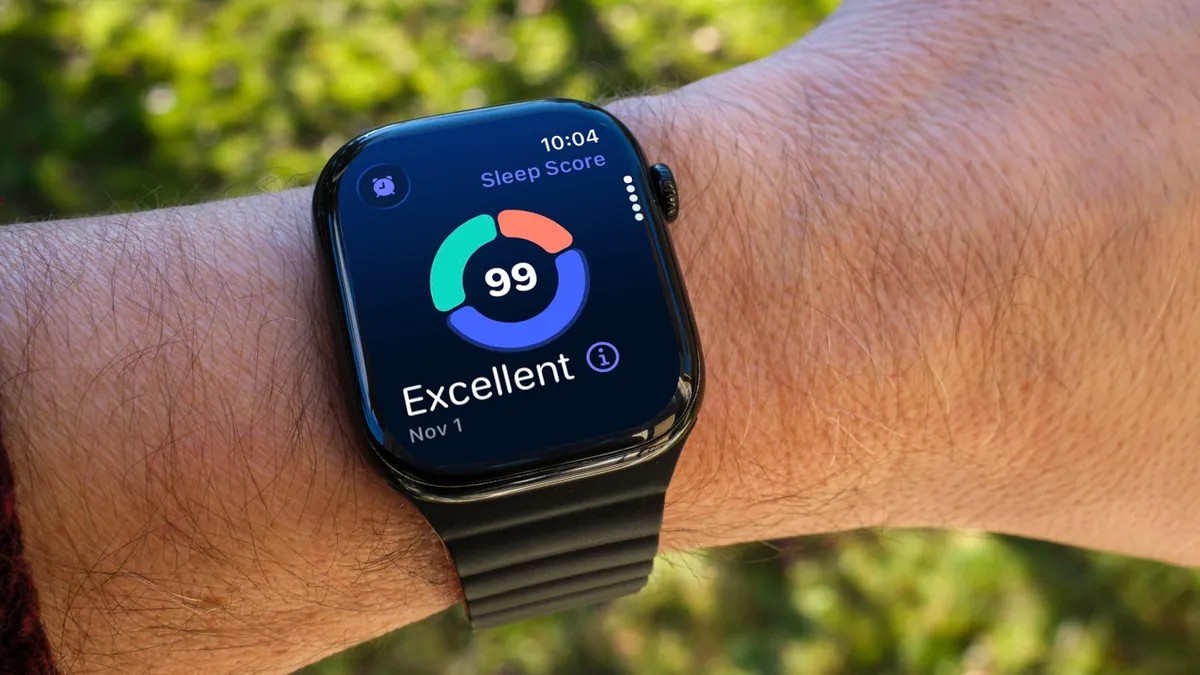
Beyond tracking duration, the new Sleep Score feature evaluates the quality of your rest on a scale of 0 to 100. This score factors in:
– Total sleep time
– Bedtime consistency
– Nighttime wake-ups (detected via movement, not necessarily leaving bed)
View your score in the Sleep app or the Smart Stack widget upon waking. Combining this data with Vitals insights allows you to adjust bedtime habits and improve overall rest quality.
Master the “Wrist Flick” Gesture
Introduced in WatchOS 26, the Wrist Flick is a powerful new gesture for Series 9, Ultra 2, and Ultra 3 models. A quick flick of the wrist can:
– Dismiss incoming calls and notifications
– Return instantly to the watch face from any app or deep menu
This gesture complements the existing Double Tap feature, offering a seamless way to navigate without touching the screen. It is particularly useful for dismissing Live Activities or exiting settings menus buried several layers deep.
Optimize the Smart Stack
The Smart Stack provides quick access to contextual information that doesn’t fit on your watch face. Access it by turning the Digital Crown clockwise or swiping up from the bottom of the screen.
Pro Tip: For minimal watch faces with few complications, the Smart Stack is ideal for accessing weather, photos, and other data without cluttering your main display.
Control Live Activities Intrusion
Live Activities (such as food delivery tracking or sports scores) automatically appear in the Smart Stack, sometimes pushing your watch face aside. If this feels intrusive, you can customize or disable them:
- Open Settings > Smart Stack > Live Activities on your Watch.
- Toggle off Auto-Launch Live Activities to prevent them from becoming the main view.
- Use Allow Live Activities to disable them entirely, or configure permissions per app (e.g., allow Timers but block Music).
For third-party apps, manage these settings via the Watch app on your iPhone under Smart Stack.
Pin Essential Widgets
While Apple’s algorithm curates the Smart Stack, you can prioritize specific widgets by pinning them. For example, if you frequently use a 10-minute timer:
- Open the Smart Stack and tap Edit.
- Tap + to add a widget (e.g., Timers).
- Select the desired widget and drag it to your preferred position.
- Tap the yellow Pin button to keep it at the top, ensuring it remains visible even when other contextual widgets appear.
Use Your Watch as a Flashlight
The Apple Watch screen can function as a flashlight, useful for navigating dark rooms without disturbing others.
How to activate:
1. Press the side button to open Control Center.
2. Tap the Flashlight icon.
3. Use the Digital Crown to adjust brightness.
Additional Modes:
– Swipe left: Flashing white light (ideal for visibility during night runs).
– Swipe left again: Red light (preserves night vision).
Customization: On Ultra models, assign the Flashlight to the Action Button via Settings > Action Button for instant access.
Pause Activity Rings During Travel or Illness
Maintaining streaks in the Activity app can be demotivating when illness or travel disrupts your routine. WatchOS now allows you to Pause Rings without breaking your streak.
- Open the Activity app.
- Tap Weekly Summary or the center of the rings.
- Select Pause Rings.
Choose to pause for today, until next week/month, or a custom duration. When ready, return to the same menu to Resume Rings. This feature acknowledges that health is non-linear and offers flexibility without penalizing temporary setbacks.
Bypass Workout Countdowns
Workout sessions typically begin with a three-second countdown. If you are already moving (e.g., starting an outdoor walk), this delay can skew step counts.
Solution: Tap the screen once during the countdown to skip it and start tracking calories and steps immediately.
Force-Quit Frozen Apps
As a computer, the Apple Watch can occasionally experience app glitches. If an app freezes or behaves erratically, force-quit it:
- Double-press the Digital Crown to view recent apps.
- Swipe left on the problematic app.
- Tap the red X to close it.
Note: Only use this for crashed apps. Manually closing apps that are running normally provides no performance benefit and may slow down relaunching.
Conclusion
By leveraging these WatchOS 26 features—from health monitoring to intuitive gestures—you can transform your Apple Watch from a simple notification hub into a proactive tool for health, productivity, and convenience. Small adjustments in settings and habits lead to a significantly smoother and more personalized smartwatch experience.