



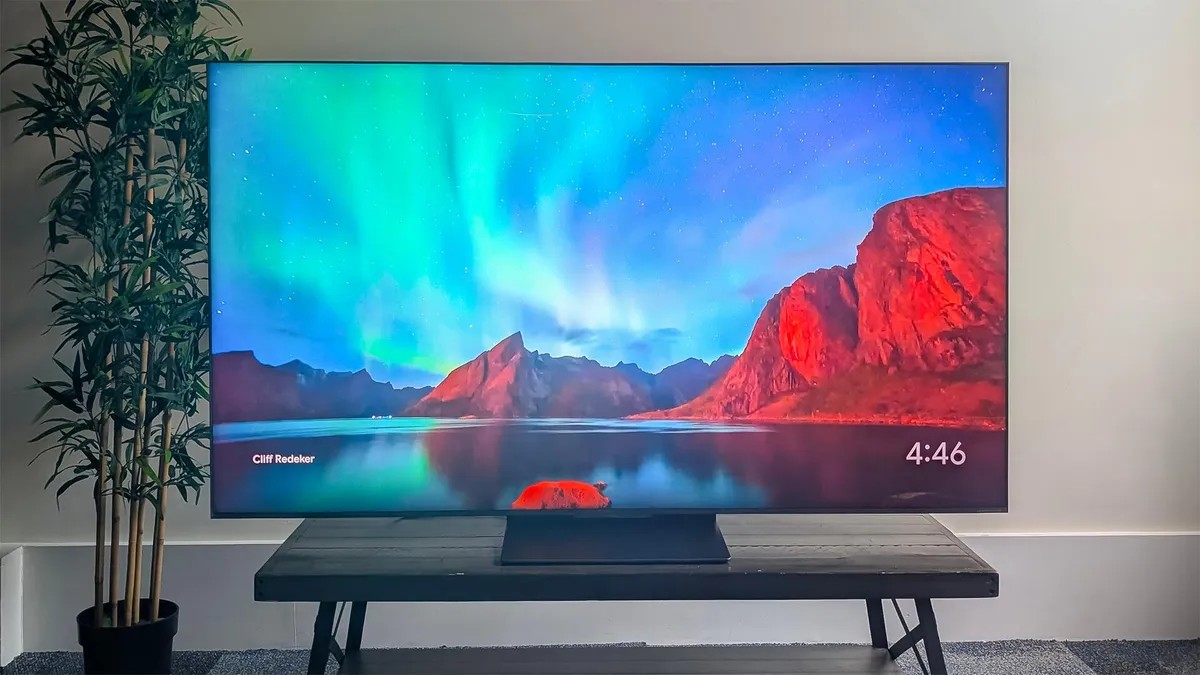
Modern televisions have become marvels of visual engineering, offering stunning resolution and vibrant colors. Yet, there is one consistent casualty of the race for thinner, sleeker designs: audio quality. Almost universally, TV speakers are underpowered, often facing the wrong direction, and physically incapable of producing rich, immersive sound.
While physics dictates that tiny drivers in slim bezels cannot replicate a cinema experience, you are not stuck with lifeless, muddy dialogue. By tweaking specific settings and adjusting your room’s acoustics, you can significantly improve clarity and volume balance—often for free.
Optimize Your TV’s Internal Settings
Manufacturers are well aware of the audio limitations inherent in flat-panel designs. To compensate, they embed software-based audio processing tools into the operating system. These features won’t create bass where none exists, but they can prioritize the frequencies that matter most for speech.
1. Prioritize Voice Clarity
Most smart TVs offer specific sound modes designed to enhance dialogue. Look for settings labeled:
* Clear Voice / Speech Mode
* Dialogue Enhancement / Speech Boost
* Voice Clarity
These modes work by amplifying the mid-range frequencies where human speech resides, while potentially dampening the highs and lows that often mask words during action scenes.
2. Fine-Tune the Equalizer (EQ)
If your TV has a manual equalizer, you can take control of the audio mix. A common issue with default TV settings is an imbalance between bass and treble.
* Reduce the Bass: Lowering the bass by a few notches can remove the “muddy” rumble that obscures dialogue.
* Boost the Treble or Mids: Increasing treble can add crispness, while boosting the mid-range directly targets vocal frequencies.
* The Counter-Intuitive Approach: In some cases, slightly lowering both bass and treble forces the remaining mid-range frequencies to become more prominent. Experiment with this if standard adjustments feel harsh.
3. Enable Dynamic Volume Control
One of the most frustrating aspects of TV audio is the drastic shift between quiet dialogue and loud explosions or commercials. Look for a setting called Automatic Volume Control, Night Mode, or Dynamic Range Compression. This feature levels out the audio peaks and valleys, allowing you to watch at a consistent volume without being blasted by sudden noise.
Adjust External Source Settings
Your TV is rarely the only device in the chain. Streaming sticks, cable boxes, and gaming consoles often output audio in formats that your TV cannot properly decode or process.
Switch to Stereo or PCM
Many external devices default to sending Surround Sound or Dolby Digital signals, assuming you have a multi-speaker setup. If your TV lacks dedicated surround channels, it may struggle to decode this complex audio, resulting in thin or distorted sound.
* Go into the audio settings of your streaming device or cable box.
* Change the output format to Stereo or PCM Stereo.
* This forces the device to send a simpler, two-channel signal that your TV can handle more effectively, often resulting in clearer dialogue.
Check App-Specific Settings
Some streaming services include their own audio enhancements. For example, Amazon Prime Video offers a Dialogue Boost mode within the app settings. Always check the accessibility or audio menu of the specific platform you are using.
Consider Room Acoustics and Placement
Sound is physical. It travels through the air and bounces off surfaces. If your TV is trapped in a poor acoustic environment, even the best settings will fail to deliver clear audio.
Free the Sound from Enclosures
TVs are designed to project sound toward the viewer, often relying on the wall behind them to reflect audio waves back into the room. Avoid placing your TV:
* Inside a closed cabinet or shelf.
* In a corner where sound waves get trapped.
* On a stand with no wall behind it (unless using a soundbar).
If your TV is mounted in a cabinet, open the doors or remove the TV entirely. If it sits on a stand, experiment with moving it closer to or farther from the wall. Even a few inches can change how sound reflects off the wall, potentially reducing echo or boosting clarity.
When Free Fixes Aren’t Enough
If you have optimized your settings, adjusted your source devices, and improved your room’s acoustics but still find the audio lacking, it is time to consider external hardware. The physics of thin TVs simply cannot be overcome by software alone if you desire high-fidelity sound.
1. The Soundbar Solution
A soundbar is the most cost-effective upgrade. Even entry-level models significantly outperform built-in TV speakers. They are designed with larger drivers and better placement to project sound forward. Setup is minimal—usually just one cable—and they often include a wireless subwoofer for added depth.
2. The Home Theater System
For the ultimate experience, a receiver paired with separate speakers (bookshelf or floor-standing) offers superior clarity and true surround sound. While this requires more investment and installation effort, it provides a cinematic audio landscape that no TV speaker can match.
Conclusion: While you cannot change the physical limitations of your TV’s speakers, you can drastically improve the listening experience through strategic software tweaks and room adjustments. By prioritizing dialogue-enhancing settings and ensuring your audio signals are compatible, you can achieve clearer, more enjoyable sound without opening your wallet.