



You know the feeling. You double-click a video file. The screen flashes black. Or worse, you get that cryptic error message about missing codecs. It’s annoying. It stops the flow. Windows Media Player is not a universal decoder. It handles basic formats well enough. But try playing a random MKV file from the early 2010s? Good luck.
This is where K-Lite Codec Pack Full enters the chat.
It isn’t just another utility. It is the industry standard for solving this exact headache. The pack bundles every codec you likely need to play audio and video on Windows. Without it, your media player is essentially blind. With it, you see everything.
Why You Need K-Lite Codec Pack Full
The name says it all. It’s a full suite.
Most users install it to stop the “format not supported” dialog. But the benefits go deeper. The pack includes Media Player Classic Home Cinema (MPC-HC). This is not your average Windows Media Player clone. It is lightweight. It has zero bloat. There are no ads tracking your habits. Just clean playback.
“K-Lite Codec Pack Full integrates a lightweight, ad-free player that handles high-definition content without draining your CPU.”
The real power lies in the modularity. You are not stuck with a one-size-fits-all installation. You can choose which codecs to include. Do you only need MP4 and MP3? Install the Basic version. Need to edit 4K RAW footage? Grab the Mega version. It gives you control.
How to Download and Install K-Lite Codec Pack Full
Safety matters. Do not download from shady third-party sites. Stick to the official website or trusted tech portals like Futura Sciences. You want a clean installer. Not one bundled with adware or browser hijackers.
Here is the process.
- Check Compatibility. The pack works on Windows 7, 8, 10, and 11. It even runs on older machines.
- Download the Installer. Grab the full version if you want every tool.
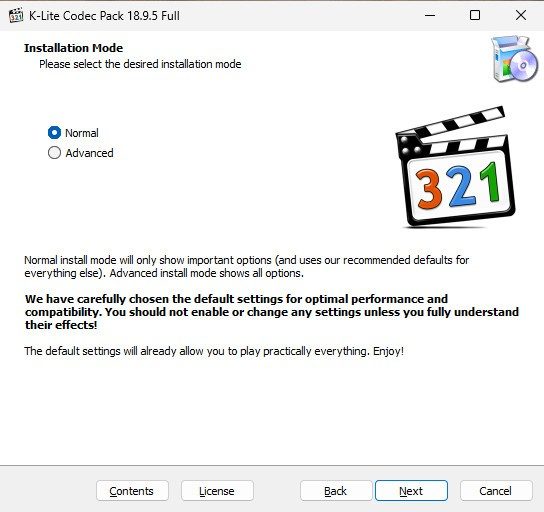
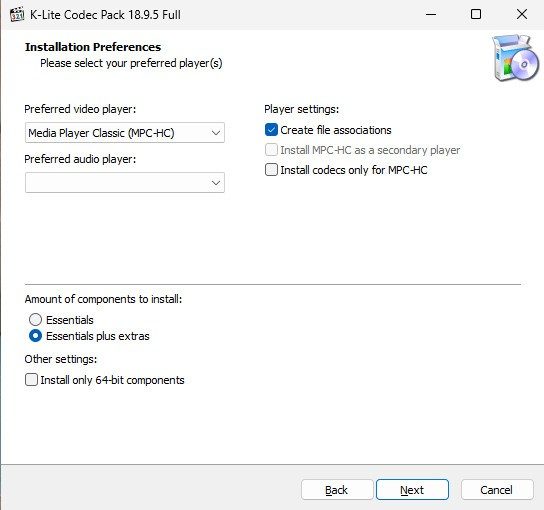
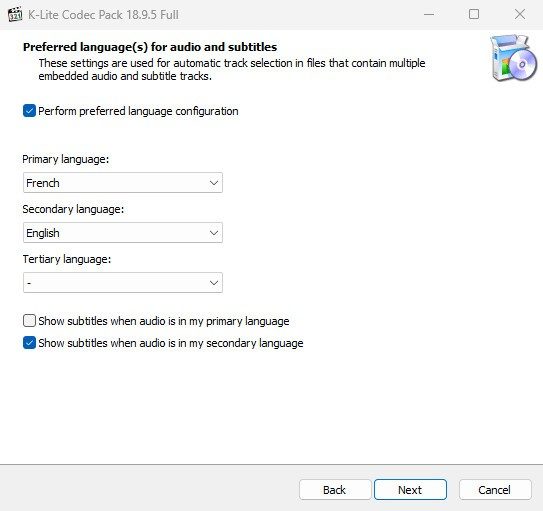
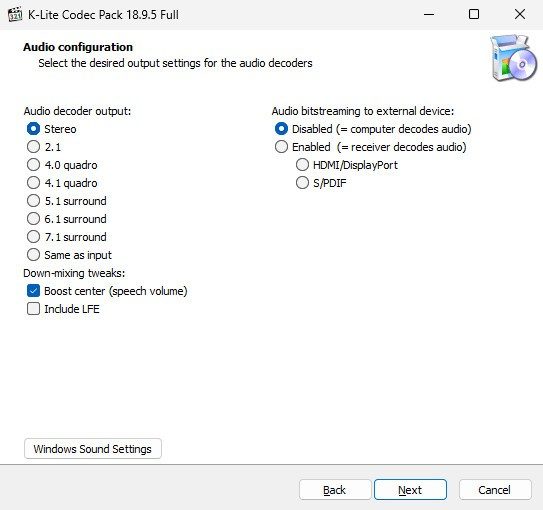
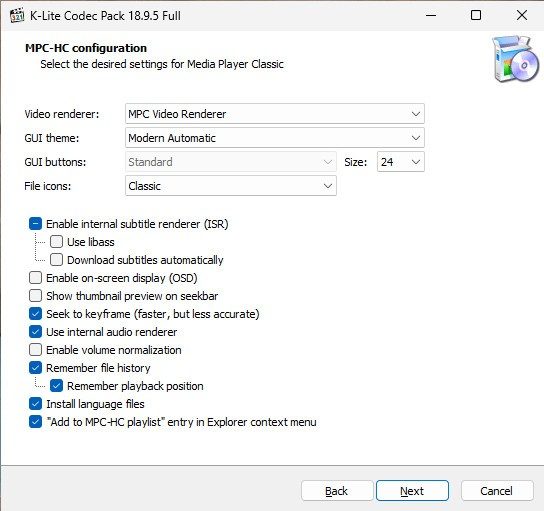
- Run the Setup. Double-click the file. The assistant guides you.
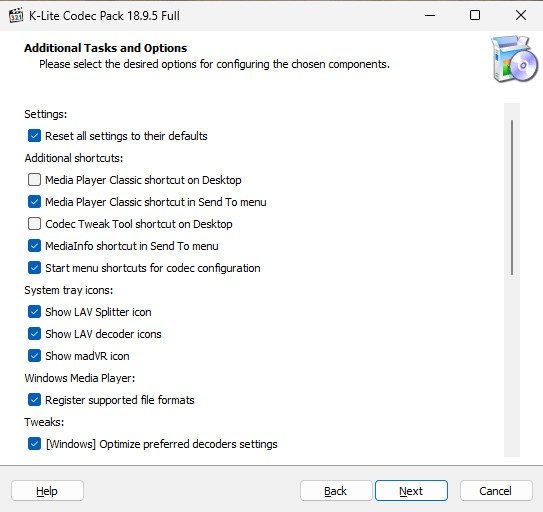
- Customize. This is key. Deselect codecs you don’t need. Cluttering your system with unused filters can cause conflicts.
- Restart. Yes, restart your PC. It ensures the new codecs register correctly with the OS.
The installer is surprisingly smart. It detects existing versions. If you are upgrading, it keeps your custom settings. You don’t lose your hard work.
Keeping K-Lite Codec Pack Full Updated
Codecs change. New formats emerge. Old ones get deprecated.
If you install K-Lite today, it will work. But six months from now? You might hit a new format it can’t touch. That is why maintenance is not optional.
The pack includes an auto-update feature. Turn it on. Let it check for new releases. This ensures long-term compatibility. You won’t be left behind when a friend sends you a weirdly compressed video file.
There is also a rollback option. If a new update breaks your playback, you can revert to a previous version. Stability first. Features second.
Who Is This For?
It sounds like a tool for experts. It isn’t.
The interface is intuitive. The installer explains what each codec does. A novice can install it and never look back.
But power users? They will love the filter priorities. You can dictate which decoder handles which stream. You can tweak performance settings. You can manage subtitle formats with precision.
It bridges the gap. Simple for the casual user. Deep for the audiophile.
The Bottom Line
Your media player is only as good as its codecs. Windows comes with a starter pack. It is insufficient for modern media consumption.
K-Lite Codec Pack Full fills that gap. It provides compatibility. It offers performance. It gives you control.
Install it. Restart. Open that video file that was giving you trouble last week. It should play now.
Does it handle every format on earth? Probably not. But it handles the vast majority. And that is enough.
K-Lite Codec Pack Full isn’t just another bundle of bits. It sits at the top of the pile for Windows users who actually want to know what’s happening under the hood. But how does it stack up against the heavy hitters?
K-Lite Codec Pack vs. VLC and Shark007
You might wonder why anyone would bother with a codec pack when VLC Media Player exists. VLC is a beast. It has an internal encoding engine. It plays everything. You don’t need external codecs. It works out of the box. That’s its strength. And its weakness.
K-Lite Codec Pack Full takes a different path. It prioritizes flexibility. Granularity. If you are a power user, you probably want to tweak individual filters. You might need to swap out a specific module for your workflow. K-Lite lets you do that. Shark007 is another alternative, but K-Lite’s approach to component control is sharper. It’s about precision. Not just playback.
Windows-Only: A Deliberate Choice
Let’s be clear. This tool is for Windows. Period. There is no official version for macOS, Linux, Android, or iOS. If you are on a Mac, you are looking at Perian. But that hasn’t been updated in years. Dead weight. Your best bet there is still VLC or other universal players that don’t rely on third-party codec installations.
Windows gets the special treatment. Why? Because K-Lite has a long tradition of compatibility. It handles older platforms like Windows 7 without breaking a sweat. It also integrates regularly with innovations in Windows 10 and Windows 11. The ecosystem is robust. It covers legacy hardware and modern setups. You don’t have to choose. You just install.
Free. Forever. No Strings.
Here is the kicker. It’s free. Completely. No premium tier. No pro version for enterprises. No student discounts because you don’t need one. There is no paid license. No subscription model lurking in the shadows.
This isn’t a teaser. It’s the real deal. The lack of a paywall democratizes high-quality multimedia playback. It removes the friction. Plus, there is no advertising. No tracking. You aren’t the product. This absence of commercial baggage is what legitimizes its use. You can trust it because it doesn’t want your money. It just wants to work.
Support and Learning Curve
Installation doesn’t require a degree in computer science. But if you want to optimize, you’ll need resources. Futura Sciences has detailed guides. They explain how to download the pack. How to install it. How to customize filters. How to troubleshoot rare compatibility issues. And how to keep it updated for security.
Understanding the components matters. You have DirectShow filters. These are used heavily for AVI, MKV, and MP4 files. You also have the Codec Tweak Tool. This is your command center. K-Lite doesn’t offer official certifications. It’s not a corporate training module. But it’s featured in technical curricula. It’s discussed in specialized forums. User communities are active. They exchange tips. They share workarounds.
“The community approach gives K-Lite a collaborative dimension where knowledge sharing improves the software long-term.”
Where to Go When Things Break
If you hit a snag, you aren’t left hanging. The official community provides free technical support. It’s not a live chat with a bot. It’s a centralized hub. FAQs. Manuals. Diagnostic tools. You can pinpoint the issue. The collaborative nature of the support system means you are getting advice from people who have likely faced the same problem. It’s practical. It’s concrete.
There is no neat bow on this package. It’s a tool. A powerful one. It works on your Windows machine. It plays your files. It stays out of your way. What happens after you install it is up to you.
Why K-Lite Codec Pack Full Still Matters on Modern Windows
You might think every Windows 11 or 10 machine comes with a codec pack these days. You’d be wrong.
The built-in Media Foundation in Windows handles basic MP4s and H.264 just fine. But ask it to play a raw MKV with H.265 video, Opus audio, and PGS subtitles? It struggles. It stutters. Or it just refuses to open the file entirely. This is exactly why download K-Lite Codec Pack Full remains a practical necessity for power users who refuse to let their media library be gated by proprietary limitations.
This isn’t about installing bloatware. It’s about regaining control over how your PC processes data.
The Architecture of a Media Player Ecosystem
K-Lite isn’t a single program. It’s a toolkit. It installs a suite of DirectShow filters and tools designed specifically for audio and video playback. The core philosophy is cohesion.
When you look at the specs, you see components that work together rather than against each other:
- Media Player Classic – Home Cinema (MPC-HC): The actual player interface. Lightweight, fast, and free.
- LAV Filters: The heavy lifter. This handles the actual decoding of video and audio streams. It’s open-source and incredibly efficient.
- DirectVobSub/VSFilter: Manages subtitles. Crucial for non-English content or fan-subbed anime.
- Icaros: Adds metadata intelligence to Windows Explorer, letting you see thumbnails and file info without launching a player.
- Codec Tweak Tool: The control panel. If something breaks, or you want to tweak performance, this is where you fix it.
The package supports both 32-bit and 64-bit architectures. The installer detects your system automatically. You don’t need to guess.
Format Support: What Can It Actually Play?
The real test is compatibility. Windows native players often choke on specific container formats or audio codecs. K-Lite fills those gaps.
Here is what the pack handles out of the box:
Video Codecs
H.264/AVC is legacy but ubiquitous. H.265/HEVC handles 4K HDR efficiently. AV1 is the new standard for web streaming, and VP9 is Google’s answer to H.265. MPEG-2 and MPEG-4 ASP cover older DVDs and VCDs.
Audio Codecs
AAC and MP3 are standard. AC-3 and E-AC-3 (Dolby Digital) are essential for surround sound setups. DTS is common in Blu-rays. FLAC and Opus provide lossless or highly efficient compressed audio. Vorbis is the open-source alternative to MP3.
Containers
MKV, MP4, AVI, MOV, TS/M2TS, and WebM. If a file exists, K-Lite likely has a decoder for it.
Subtitles
SRT is basic text. ASS/SSA allows for styled subtitles (fonts, colors, positioning). VobSub and PGS/BD are image-based subtitles often found on Blu-rays.
Hardware Acceleration and Performance
Decoding video is computationally expensive. Your CPU can handle it, but it burns power and generates heat.
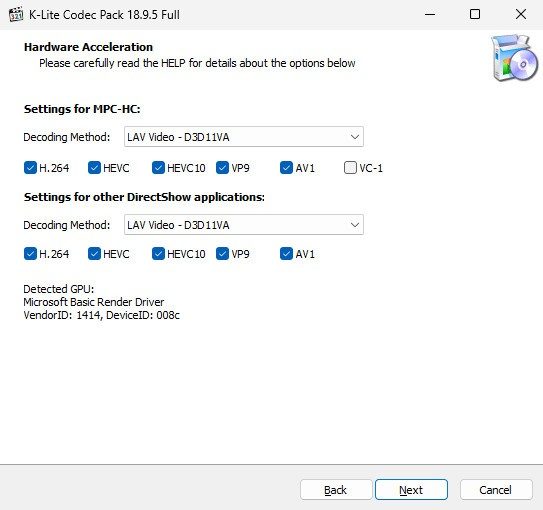
K-Lite leverages hardware acceleration through DXVA2 and D3D11. If you have an Intel processor with Quick Sync, the pack can offload the decoding work to the integrated GPU. This results in smoother playback, lower fan noise, and reduced battery drain on laptops.
It’s not magic. You still need a decent GPU and updated drivers. But for HD and UHD content, hardware acceleration is the difference between a choppy mess and a cinematic experience.
Installation Reality: No Adware, Just Codecs
The biggest risk with free codec packs is bundled junk
The hidden cost of “free” collaboration tools
We used to think the cloud was just storage. Now it’s a hostage situation.
You get the premium features. The larger file limits. The nice UI. But check the data processing clause. That’s where the real product is.
Companies are scraping your internal communications. Not to steal your IP directly—yet—but to train models that will eventually outcompete you. You are the training data. And you didn’t sign a waiver for that specific part.
“The terms of service are not a contract. They are a unilateral declaration of intent.”
This isn’t paranoia. It’s standard operating procedure for the big tech giants. Their business model isn’t selling software. It’s selling attention and data. When you paste code into a chatbot, you’re not asking for help. You’re contributing to the corpus.
Where your secrets go
Consider the “anonymous” data sets. Anonymization is a myth at scale. With enough cross-referencing, a name becomes a node in a graph. A graph becomes a profile. A profile becomes a target.
Which tools are safest? None of them. Not really.
- Public LLMs: Your input becomes their output. Your context becomes their context.
- Closed-source APIs: You pay for isolation, but they still own the logs.
- On-premise solutions: You own the risk. You also own the maintenance burden.
It’s a trade-off. Convenience versus control. Most teams pick convenience. Until a breach happens.
The compliance trap
GDPR. CCPA. HIPAA. These aren’t just fines. They’re liability.
If your employees use an unauthorized AI tool to analyze customer data, who is responsible? The vendor? The employee? The company that didn’t provide a better alternative?
The answer is usually the company.
IT departments are scrambling. Shadow IT is growing because official tools are too slow or too restrictive. So devs use the shiny new chatbot. And then wonder why their proprietary algorithm showed up in a training dataset.
How do you stop this? You can’t fully. You can only mitigate.
Building a defense in depth
- Network segmentation. Keep the AI sandbox away from the core database.
- Data loss prevention (DLP). Block sensitive keywords. It’s not foolproof, but it’s a start.
- Policy enforcement. Make it clear. Use it, and you’re fired. Simple.
But here’s the thing. Users will find a workaround. They always do. They need the speed. They hate the bureaucracy.
So you’re left with a choice. Ban the tools and watch productivity crater. Or allow them and hope the legal team is faster than the engineers.
The future is messy
There is no clean solution. The technology moves faster than the regulations. Regulations move faster than the ethics. Ethics move faster than the public understanding.
You’re standing in the middle of it.
Your code is being read. Your emails are being scanned. Your ideas are being compressed into vectors.
Is it worth it?
For most businesses, yes. The efficiency gains are real. But the risk is existential. And most people don’t see it until it’s too late.