




Microsoft To Do has quietly become the default organizer for millions of people. It is not just another checklist app. It is a central hub that pulls in reminders, tasks, and notes into one clean interface. The appeal is simple. It is free. It is fast. The design is stripped down to what matters: getting things done without fighting the software.
Creating a list takes seconds. Adding a deadline feels like clicking a button, not filling out a form. You can prioritize items on Windows, Android, iOS, or directly in a web browser. The barrier to entry is low enough that even people who hate productivity apps find themselves using it.
Why the sync matters more than you think
The real magic happens in the background. Microsoft To Do relies on a single Microsoft account to keep everything in lockstep. Change a list on your phone? It updates on your desktop instantly. There is no manual syncing button to press. No waiting for a refresh. This synchronization across devices is a major selling point for anyone juggling multiple screens.
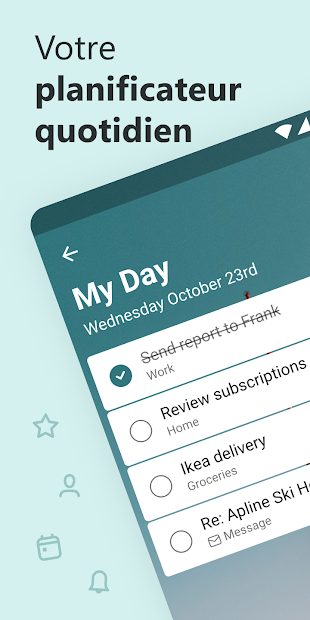
The app also includes a system for highly customizable reminders. You can set alerts for critical deadlines so nothing slips through the cracks. But the feature that stands out is “My Day.”
“My Day” suggests priorities based on your unfinished tasks and daily goals.
It does not just dump a static list on your screen. It actively curates what you should focus on next. This reduces decision fatigue. You stop wondering what to do next and just start doing it.
Collaboration that actually works
This tool is not just for solo users. The flexibility extends to team environments. You can share lists with other people. This makes it useful for professional projects, school assignments, or even household chores.
When you share a list, everyone sees the progress in real time. Team members can add comments. They can check off completed actions. It creates a shared space for accountability. This collaborative layer adds significant value for anyone working in groups where tracking missions is essential.
Where to install Microsoft To Do
Getting the application running is straightforward because it is available almost everywhere. For Windows users, it is in the Microsoft Store. It installs quickly. If you prefer, you can download it directly from the Microsoft website.
Mobile users are covered too. Android devices can grab it from the Google Play Store. iOS users find it in the App Store. It even works on Apple Watch. This multi-platform support ensures continuity. You can start a thought on your watch and finish it on your laptop.
The Mac situation and web access
Here is the catch. There is no native app for macOS. If you use a Mac, you cannot install a dedicated application. However, you are not left out. The web version works perfectly in any modern browser.
You do not need to install anything. The web interface retains all the core functionalities. It allows access to lists, tasks, and reminders without losing critical features. This makes it a viable solution for Mac users who refuse to switch to Windows for productivity.
Managing updates and settings
Microsoft To Do is updated regularly. These updates bring improvements and fix bugs. If you want the latest version, you can check for updates in the desktop app settings or reinstall from your respective app store.
The software also offers robust privacy controls. You can manage permissions for shared lists. Automatic backups ensure your data is safe. For those with sensitive projects, this security layer is important.
Sometimes people want to go back. Maybe a new update broke something for their workflow. Or they just prefer the old look. Reverting to an older version is tricky. You usually have to look through Microsoft’s official archives or contact support. It is not a one-click process.
The lifecycle of the software is monitored closely. This ensures stability. It keeps the app performant and relevant to new digital habits. For most users, sticking with the current version is the best bet. The sync is reliable. The features are deep. And it fits into the existing Microsoft ecosystem without friction.
It works. That is often enough.

Microsoft To Do vs The Field: Why Integration Beats Feature Density
Microsoft To Do doesn’t just sit in your task list. It lives inside the Microsoft 365 ecosystem. That is the entire value proposition. If you are deep in Outlook, Planner, and Teams, this app isn’t just an option. It is the natural hub.
Compare that to Todoist. It offers granular control. You get complex project hierarchies. Advanced filters. Tagging systems that rival CRM tools. Then there is Trello. Visual boards. Kanban cards. It is designed for collaborative chaos and project management, not personal checklist hygiene. And Google Tasks? It is barebones by design, tucked away in Gmail.
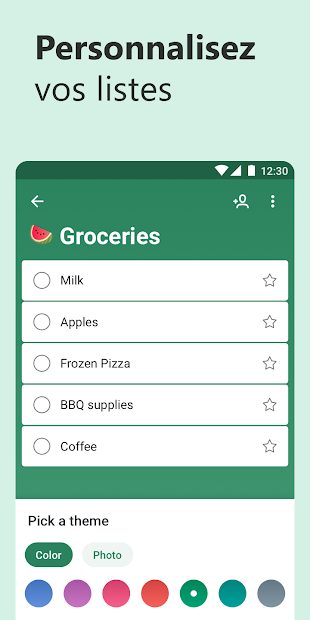
Microsoft To Do takes a different path. It strips away the clutter. The interface is minimalist. Almost aggressively so. It feels like a classic paper to-do list digitized. For power users who need to sort tasks by twelve different metadata fields, this feels limiting. For the rest of us? It is liberating.
The price tag is the killer feature here. It is free. No premium tier. No hidden paywalls for basic functionality. This makes it a default choice for students, small businesses, and anyone who refuses to pay monthly fees for software they already have. The barrier to entry is zero. The only real cost is your existing Microsoft subscription.
Automating the Grunt Work with Power Automate
Basic task creation is easy. Anyone can add an item. The real magic happens when you stop treating Microsoft To Do as a static list. Start treating it as an endpoint for automation.
Enter Power Automate. This is where the tool stops being a simple notebook and starts acting like a workflow engine. You can build flows that trigger actions based on specific events. Got an email from a client in Outlook? The flow can automatically create a task in Microsoft To Do with the subject line and a due date.
This integration reduces context switching. You do not have to manually copy-paste requirements from an email thread into a separate app. The ecosystem handles it. You can link reminders across devices seamlessly. If a task is due, the alert pushes to your phone, your desktop, and potentially your calendar. It is about reducing friction in your daily routine.
Learning the Ropes: Training and Future Roadmap
You will not find a standalone “Certified Microsoft To Do Expert” badge. Why? Because Microsoft does not treat it as an isolated silo. It is part of the larger Microsoft 365 certification landscape. The skills you learn here apply to Planner, Outlook, and SharePoint. The ecosystem is interconnected. Isolating one tool makes less sense than mastering the suite.
For self-learners, Microsoft provides official tutorials. There are interactive pathways. Video guides. You can also find third-party resources from specialized business software trainers. The learning curve is shallow if you already know Outlook. It is steeper if you try to leverage Power Automate, but the documentation is robust.
Microsoft is not resting on its laurels. The focus remains on accessibility and inclusivity. Updates continuously refine the experience across all devices. This includes support for accessibility features like screen readers and high-contrast modes. It is not an afterthought. It is a core design principle.
The push toward remote work and hybrid models is driving new features. Expect more tools for productivity analysis. Think dashboards that show you where your time goes. Not to judge you, but to help you rebalance. The goal is efficiency without burnout.
Integration with other cloud solutions remains the next frontier. As hybrid work becomes the norm, the lines between personal task management and professional project collaboration blur. Microsoft To Do is positioning itself to bridge that gap. It is not trying to replace Trello for complex team projects. It is trying to be the single source of truth for your daily obligations, synced across every device you own.
The simplicity is a feature, not a bug. But it requires trust. Trust that the data is safe. Trust that the sync works. And trust that the automation you build actually saves you time. For now, that trust is largely justified. The free price point lowers the risk of experimentation. You can try it out without fear of locking yourself into a subscription.
How many tasks will you actually finish today? The tool won’t force you to answer that. It just provides the space to try.
You don’t need a high-end device. You don’t need a budget. You just need a Microsoft account.
That’s the hook. It sounds too simple for modern software, but it works. The app relies on a single cloud identity to bridge Windows, Android, iOS, iPadOS, and even Apple Watch. Try that with a standalone task manager from three years ago. Good luck.
The architecture is straightforward. It’s cloud-first. Your lists, tasks, and reminders live on Microsoft’s servers. This means if you add a grocery item on your phone while commuting, it appears on your desktop before you even sit down.
But what happens when the subway signal dies?
This is where the offline mode matters. You aren’t locked out. You can still create tasks. You can still check them off. The data stays local. Once the connection returns, the sync happens automatically. No manual refresh. No “please retry” dialogs. Just seamless data reconciliation.
Integrations that actually work
Most productivity apps promise integration. They deliver a half-baked API and a lot of frustration. Microsoft To Do takes a different path.
It’s baked into the ecosystem. Outlook. Planner. Microsoft 365.
This isn’t just a link. It’s native integration. If you assign a task in Outlook, it shows up in To Do. If you manage a project in Planner, the tasks flow through. This centralization reduces context switching. You stop jumping between tabs. You stop copying and pasting. The workflow stays consistent.
“The app favors centralization and workflow consistency without complex configuration.”
For businesses, this is the selling point. For individuals, it’s just convenience. You already have the account. You already use Outlook. Why add another login?
Accessibility and hardware realities
Let’s talk about barriers. Or the lack thereof.
Microsoft To Do supports screen readers. It supports keyboard navigation. It offers contrast settings across platforms. This isn’t an afterthought. It’s a core feature of the design philosophy.
Hardware requirements? Minimal. If your OS is supported, you’re good. Windows 11? Yes. Windows 10? Yes. Android? Yes. iOS/iPadOS? Yes. watchOS? Yes. Web browser? Yes.
The web version is particularly relevant. It requires nothing but a modern browser. No installation. No bloatware. This simplifies deployment in schools, offices, or personal setups where admin rights are restricted.
The fine print: permissions and privacy
Sharing lists isn’t just a toggle. It’s a permission structure. You control who sees what. You manage access levels. This gives you a framework for shared responsibilities without giving up control.
Internet is still king. You need it for sync. You need it for sharing. You need it for cloud backup. Offline mode is a safety net, not a replacement.
The app is free. Distributed through Microsoft Store, Google Play, App Store, and the web. Category: Productivity. Task management. Reminders.
It’s multilingual. French support is built-in. So is English, Spanish, and dozens of others.
Why this matters for your daily workflow
You’re not buying software. You’re buying continuity.
The friction between devices is gone. The friction between email and tasks is gone. The friction between offline and online is minimized.
Does it replace your complex project management suite? No. But for daily life? It’s precise. It’s light. It doesn’t demand your attention. It just works.
The question isn’t whether you need it. The question is whether you’re ready to stop managing your tools and start managing your time.
The sync is automatic. The integration is native. The price is zero.
What do you have to lose?

The real cost of modern cloud infrastructure
The conversation around cloud computing rarely stays at the architectural level for long. It always drifts downward. Into the bill. Into the line item that makes CFOs sweat and CTOs defend their existence in quarterly reviews. We talk about scalability and agility as if they are free. They are not. They are a subscription service for operational risk.
Most teams fail here because they treat infrastructure as a static cost center rather than a dynamic variable. You spin up a database. It sits there. Idle. Burning cash at 3 AM when no one is querying it. This is the silent killer of profit margins in tech startups and enterprise teams alike. The technology allows for elasticity. The human behavior rarely matches that elasticity.
Why reserved instances are no longer enough
A few years ago, the answer was simple: buy reserved instances. Commit to a term. Save money. It worked until workloads became unpredictable. It worked until the shift to serverless and containerized architectures rendered static reservations useless. Now, you are paying for availability zones that might not even be needed.
The modern approach requires more than just committing upfront. It demands a culture of efficiency. Tools like AWS Cost Explorer or Azure Cost Management provide the data. Data is not the solution. Action is. Without automated alerts, without tagging policies, and without regular audits, those dashboards are just expensive mirrors. You look at them. You see the red. You ignore it until the next billing cycle hits.
How FinOps changes the game
FinOps is not a tool. It is a cultural practice. It bridges the gap between finance and engineering. Engineers need to see the cost impact of their code decisions. A poorly optimized query isn’t just slow. It is expensive. When developers can see the dollar sign next to the latency metric, behavior changes. Slowly. But it changes.
This shift requires visibility. Real-time visibility. Not end-of-month surprises.
- Tagging consistency: If you cannot attribute cost, you cannot optimize it.
- Automated shut-downs: Non-production environments should sleep after hours.
- Right-sizing: Stop over-provisioning “just in case.” The “in case” rarely happens.
Where to start without burning cash
Start small. Pick one workload. One service. Maybe your largest S3 bucket or your most active EC2 fleet. Analyze it for 30 days. Identify waste. Delete it. Or resize it. Then move to the next.
Do not try to boil the ocean. You will fail. You will create friction. Developers will hate you. Finance will be confused. Instead, build a feedback loop. Show the team the savings. Celebrate the efficiency. Make it part of the code review process. Is this instance necessary? Is this data retention policy cost-effective?
The hidden tax of compliance
There is another layer. Compliance. GDPR. HIPAA. SOC2. These are not optional for many. They add cost. Storage costs. Audit costs. Access logging costs. The more data you keep, the more it costs to secure it. The more data you keep, the more it costs to back it up.
Many teams hoard data “because we might need it later.” That is a lie. You do not need it. You need the ability to retrieve it quickly when you actually have a use case.