



The migration from Hotmail to Outlook wasn’t just a rebranding exercise. It was a structural shift that consolidated Microsoft’s email infrastructure under a single, modern umbrella. If you are trying to figure out how to register for Hotmail now, you are essentially learning how to create a new Microsoft account. The interface has changed. The underlying engine is faster. The confusion, however, remains for many users who remember the old login screens.
You don’t need to search for a separate “Hotmail portal.” It doesn’t exist in the way it used to. When you sign up for Outlook.com, you are signing up for the legacy Hotmail service with all its existing data structures intact, albeit accessed through Microsoft’s current ecosystem.
Accessing the Registration Portal
Start by navigating to the official entry point. You can go directly to Outlook.com. Once the landing page loads, look for the option labeled “Create one!” or “Sign up for free.” This is the gateway. Older guides might tell you to look for “Sign in,” but for new users, that button is a trap. It leads to a login screen where you will be stuck if you don’t already have credentials.
Click the creation link. The system will redirect you to a Microsoft account creation page. This is the critical step. Many users stop here because the language can be dense. The interface asks for basic identity markers. First name. Last name.
Building the Address and Password
You will be prompted to choose a username. This is where the “Hotmail” nostalgia kicks in. You can still choose an @hotmail.com suffix. You are not forced into @outlook.com or @live.com. If you want that classic address, type it in. The system will check availability in real-time. If it’s taken, you’ll need to get creative.
Next, create a strong password. Microsoft’s requirements have tightened over the years. A simple 123456 won’t cut it. You need a mix of upper and lower case letters, numbers, and symbols. This isn’t arbitrary security theater. It protects your digital identity across the entire Microsoft suite, including Office 365 and OneDrive.
Verifying Identity and Completing Setup
The process doesn’t end with the password. Microsoft requires proof of humanity. You will be asked to enter a phone number or an existing email address for verification. This step is non-negotiable. It prevents bot farms from flooding the service. Input the code sent to your device.
Then comes the personal details. Date of birth. Country of residence. This data helps Microsoft tailor regional content and comply with local regulations, such as GDPR in Europe or COPPA in the US for younger users. Be accurate here. Changing it later can be a bureaucratic headache.
Finally, review the Terms of Service. You don’t need to read every word, but you must check the box to agree. Click “Create Account.”
Why This Matters for Everyday Users
Why go through this trouble? Hotmail was the original mass-market email provider. It introduced the concept of free, ad-supported email on a massive scale. Today, the Outlook platform offers significantly better spam filtering, integrated calendar features, and deeper integration with Microsoft Word and Excel.
For the average
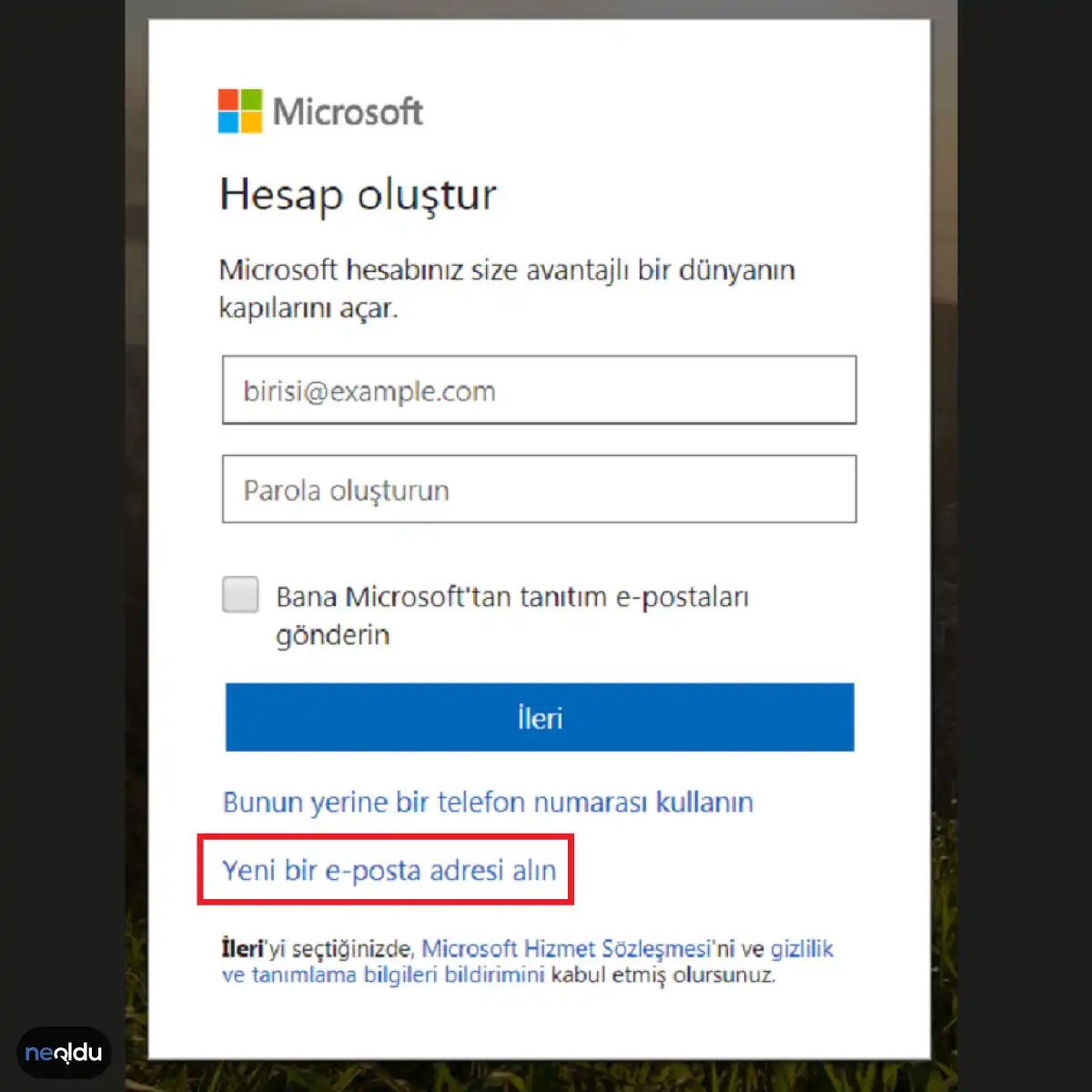
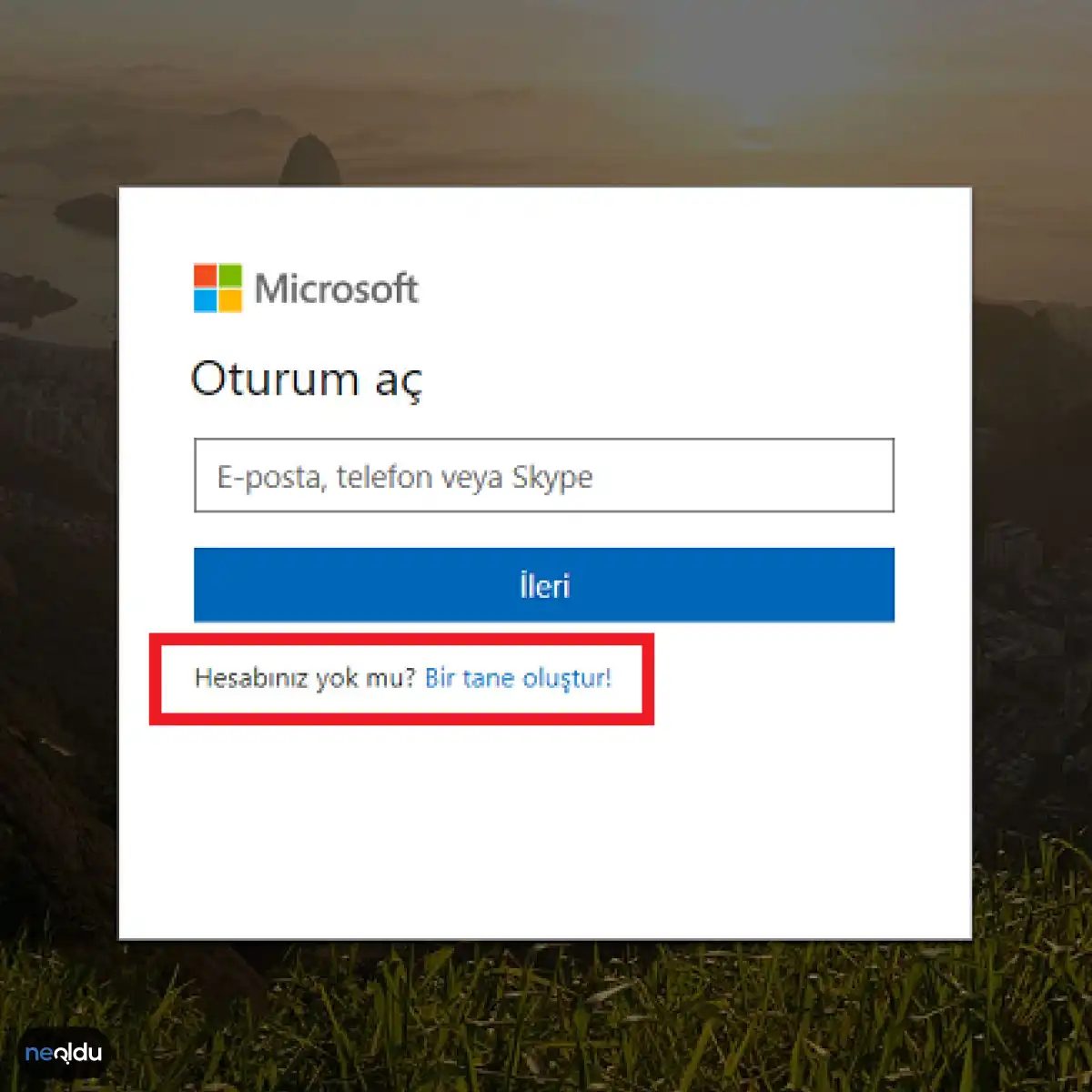
The initial screen is deceptive. You see “Hesabınız yok mu? Bir tane oluştur!” (Don’t have an account? Create one!). It’s a trap. A necessary one, but a trap nonetheless. Click it. You expect a new page. You get the same one. The UI doesn’t shift. It just waits.
3. The Hidden Door: Get a New E-Posta Address
Look closer. The bottom of that static screen holds the real key: “Yeni bir e-posta adresi alın”. Click it. Nothing happens visually. The layout stays rigid. This is by design. It keeps you anchored to the same context. You aren’t leaving the app. You are branching within it.
4. Crafting the Credentials
Now you’re building the identity.
This isn’t just typing letters. It’s a two-part handshake.
First, the mail address. Pick something you’ll recognize in five years, not just today. Random strings decay.
Second, the password. Don’t reuse the one from your old banking portal. That’s a habit that costs money.
The friction here is intentional. They want you to pause. To think about the alias you’re creating.
Fill the fields. Respect the complexity rules. They’re annoying, but they work. Once submitted, that email and password become the keys. Without them, the door stays shut.
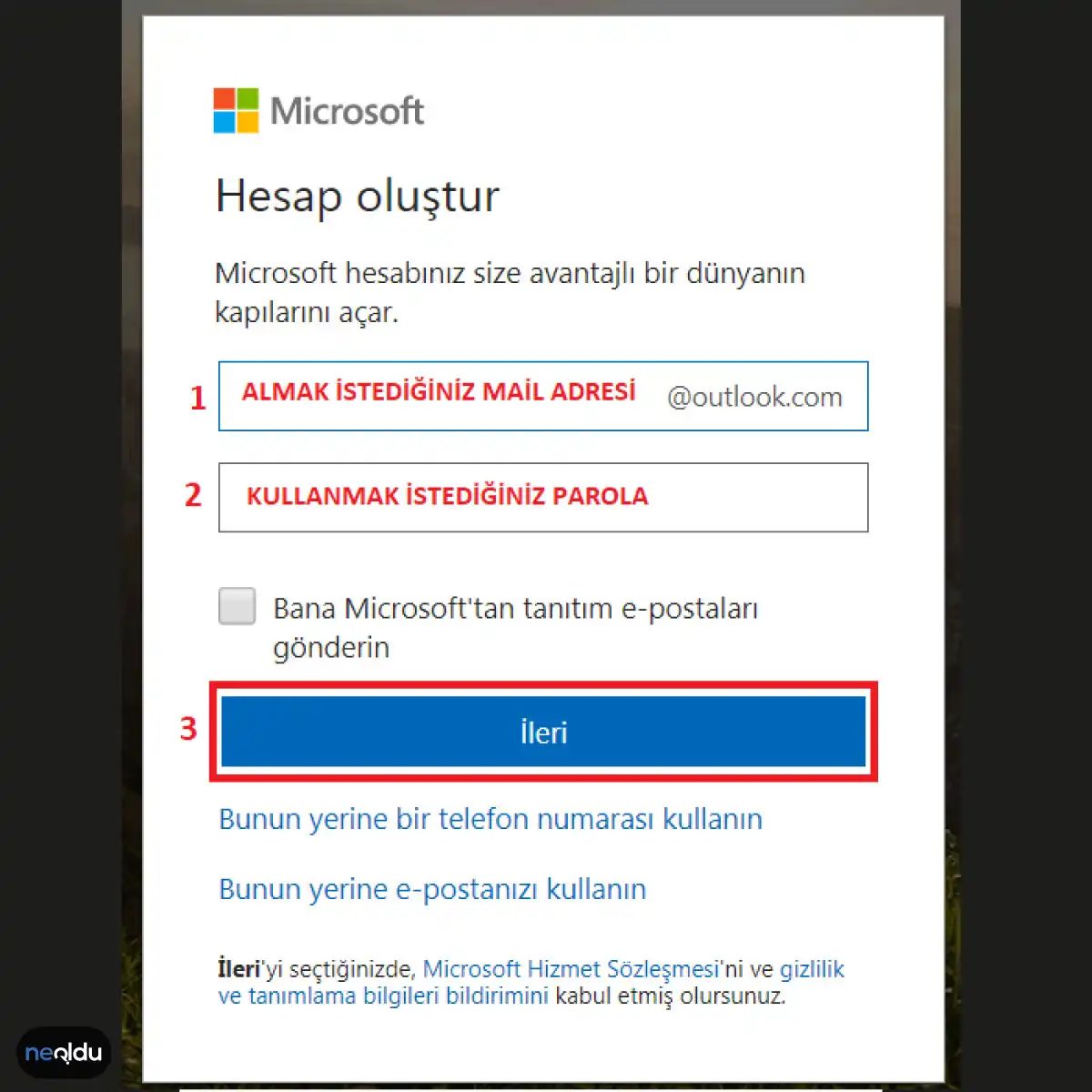
E-posta adresini belirledikten sonra hemen parolanızı da ayarlamalısınız. Karşınıza çıkan “Parola Oluşturun” alanına güvenli bir şifre girin. Kurallar katı olabilir. Harfler, rakamlar ve semboller içermesi beklenir. Sayfanın uyarılarını okumak şart. Neden? Çünkü sistem her şeye izin vermez.
Buradaki en büyük tuzak adresin müsait olması. Yazdığınız isim daha önce başkası tarafından alınmış olabilir. Sayfa sizi anında uyarır. Hata mesajı alırsanız pes etmeyin. Farklı bir adres denemelisiniz. “neolducom1” gibi basit bir isimle şansınızı zorluyorsanız, muhtemelen dolu çıkacak. Alternatifler üretmek zorundasınız.
Şifre konusunda da benzer bir süreç işler. Çok zayıf bir parola girmeye çalışırsanız sistem sizi reddeder. Güvenlik gereği minimum karakter sayısı ve karmaşıklık beklenir. Bu kurallara uymazsanız “İleri” butonu bazen grileşir, bazen de sizi hata ekranına yönlendirir. Sabırlı olun. Doğru kombinasyonu bulduğunuzda buton aktif hale gelir.
5. Ad ve Soyadı Kısmını Doldurun
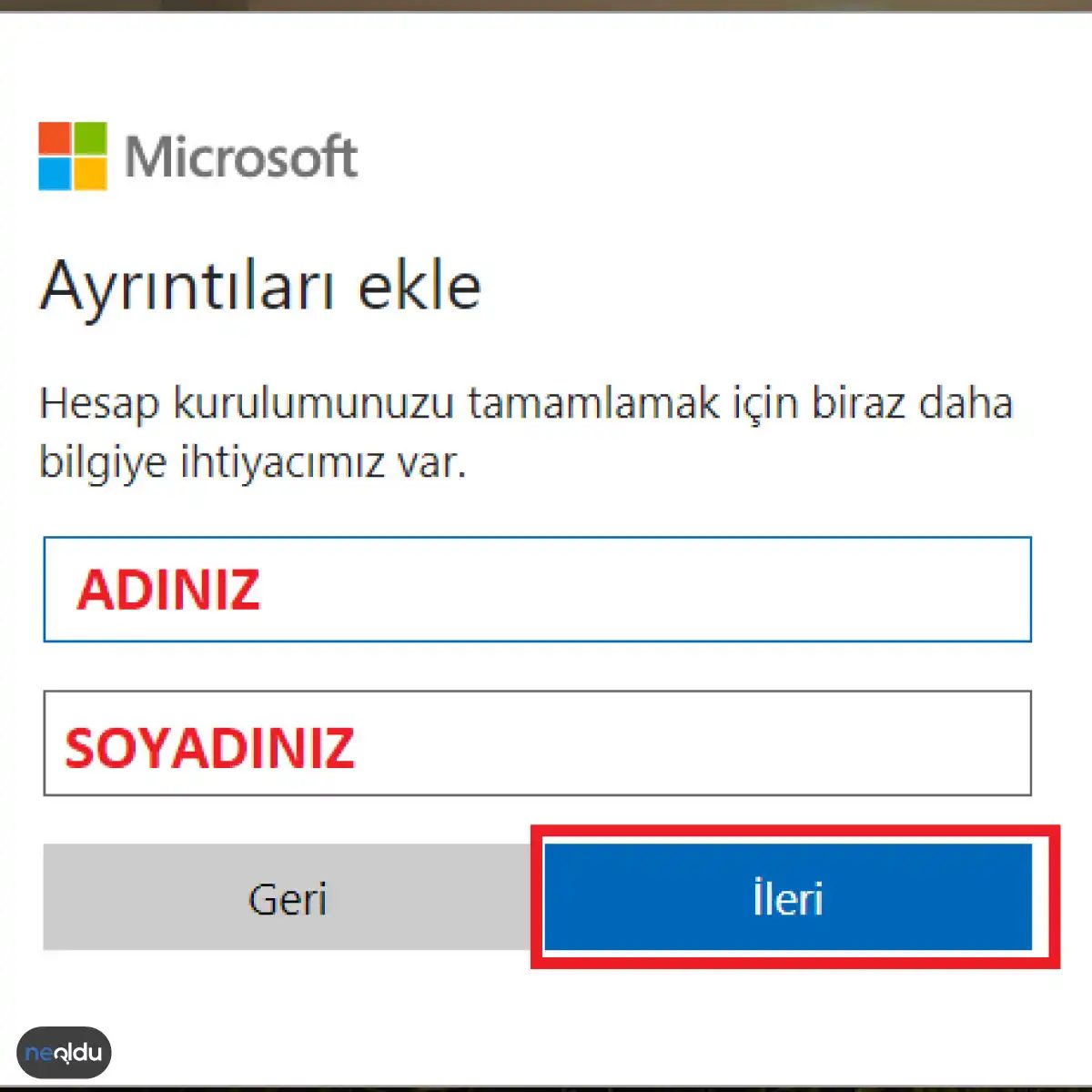
Butona tıkladığınızda yeni bir ekran açılır. Bu aşama kişiselleştirme içindir. Genellikle “Ad” ve “Soyad” alanları karşınıza çıkar. Buraya gerçek isminizi yazmak zorunda değilsiniz. Çoğu kullanıcı takma ad veya sadece ad kısmını doldurarak geçiştirir.
Soyad alanı isteğe bağlı olabilir. Bazı sistemlerde boş bırakırsanız hata alırsınız. Bazılarında ise tamamen opsiyoneldir. Hangi durumda olduğunuzu kontrol edin. Eğer zorunlu ise, var olmayan bir soyad da yazılabilir. Ama unutmayın, bu bilgiler profilinizde görünür.
Dikkatli olun. Yanlış bilgi girmek ileride hesap kurtarma işlemlerini karmaşıklaştırabilir. İsim alanları e-posta adresinizle birlikte tanımlayıcı unsur olarak kullanılır. İnsanlar size geldiğinde, bu ismi görecektir.
6. Enter Country and Date of Birth
Hit “Next” after filling in the required fields on the Hotmail registration page. On the following screen, type your first and last name into the “First Name” and “Last Name” fields. Press “Next” again.
6. Enter Country and Date of Birth
Now the form asks for where you live and when you were born. Pick your country from the dropdown list. Then input your birth date. This step confirms your identity and helps tailor regional services, though it rarely impacts basic email functionality for most users.
7. Gerekli Karakterleri Yazın
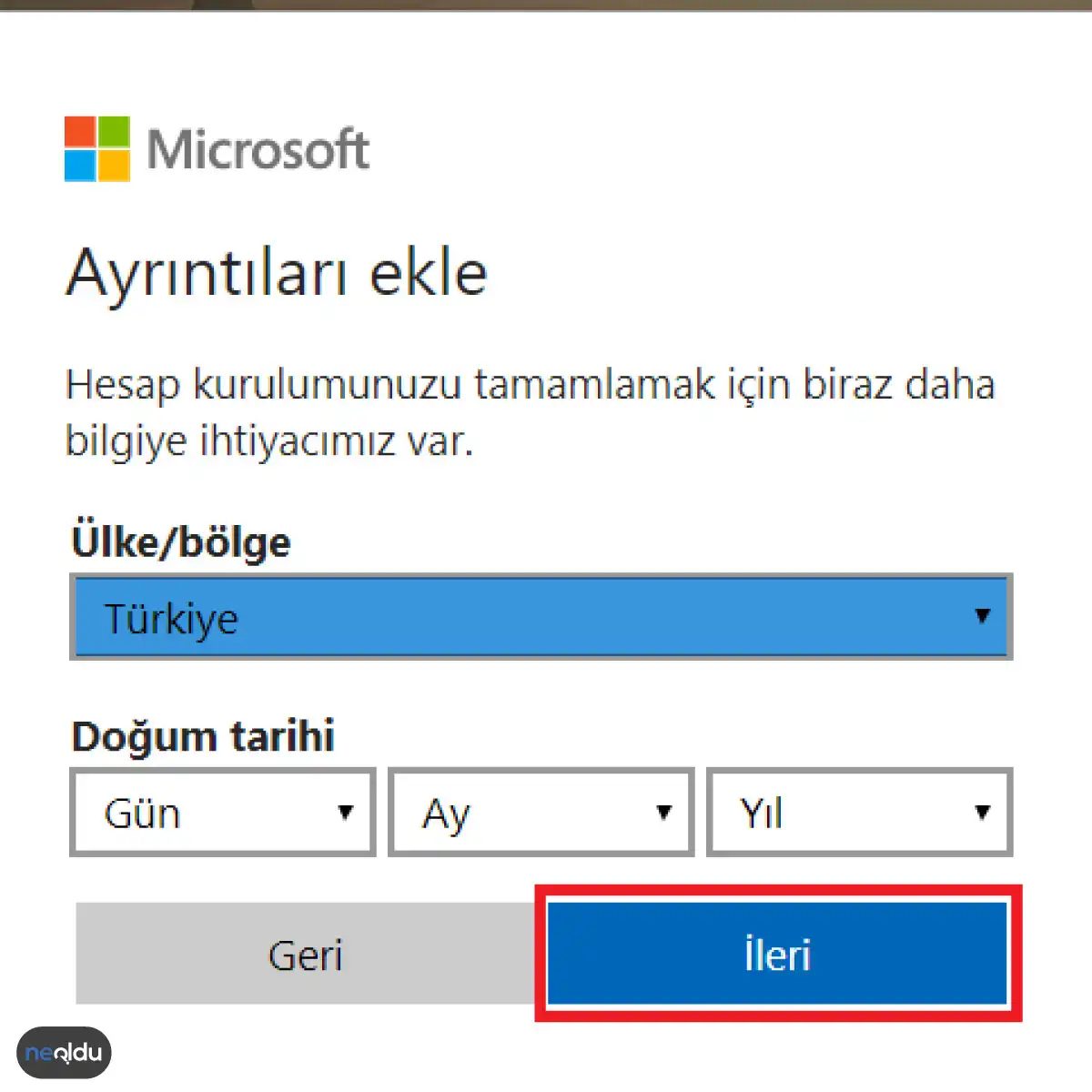
Artık profilinizdeki temel bilgiler dolduruldu. Sırada doğrulama var. Ekran size iki şey soracak: Ülke ve Doğum Tarihi.
Burada hata yapmak kolay. Otomatik tamamlamaya güvenmeyin. Kendi doğru adresinizi veya tarih formatını seçin. Yanlış ülke seçerseniz, bazı özellikler kilitlenebilir. Yanlış yaş girerseniz, hesabınız silinme riskiyle karşılaşır. Gençlik veya reşitlik sınırı platforma göre değişir.
Bilgileri girdiğinizde, sağ alttaki “İleri” butonuna tıklayın.
Bu adım basit görünür. Ama arka planda büyük bir değişiklik başlatır. Algoritma, içeriğinize uygunluk ve reklam hedeflemesi için bu veriyi kullanır.
Sonraki ekranda, bu bilgilerin doğruluğunu teyit etmeniz istenebilir. Bazı durumlarda kimlik doğrulaması da talep edilebilir. Bu, hesabınızı güvence altına almak içindir.
Doğum tarihiniz ve ülkeniz, hesabınızın geleceğini şekillendirecek. Düzenlemek kolay değildir. Sonradan değiştirmek, bazen hesap kısıtlamalarına yol açar.
Dikkatli olun.
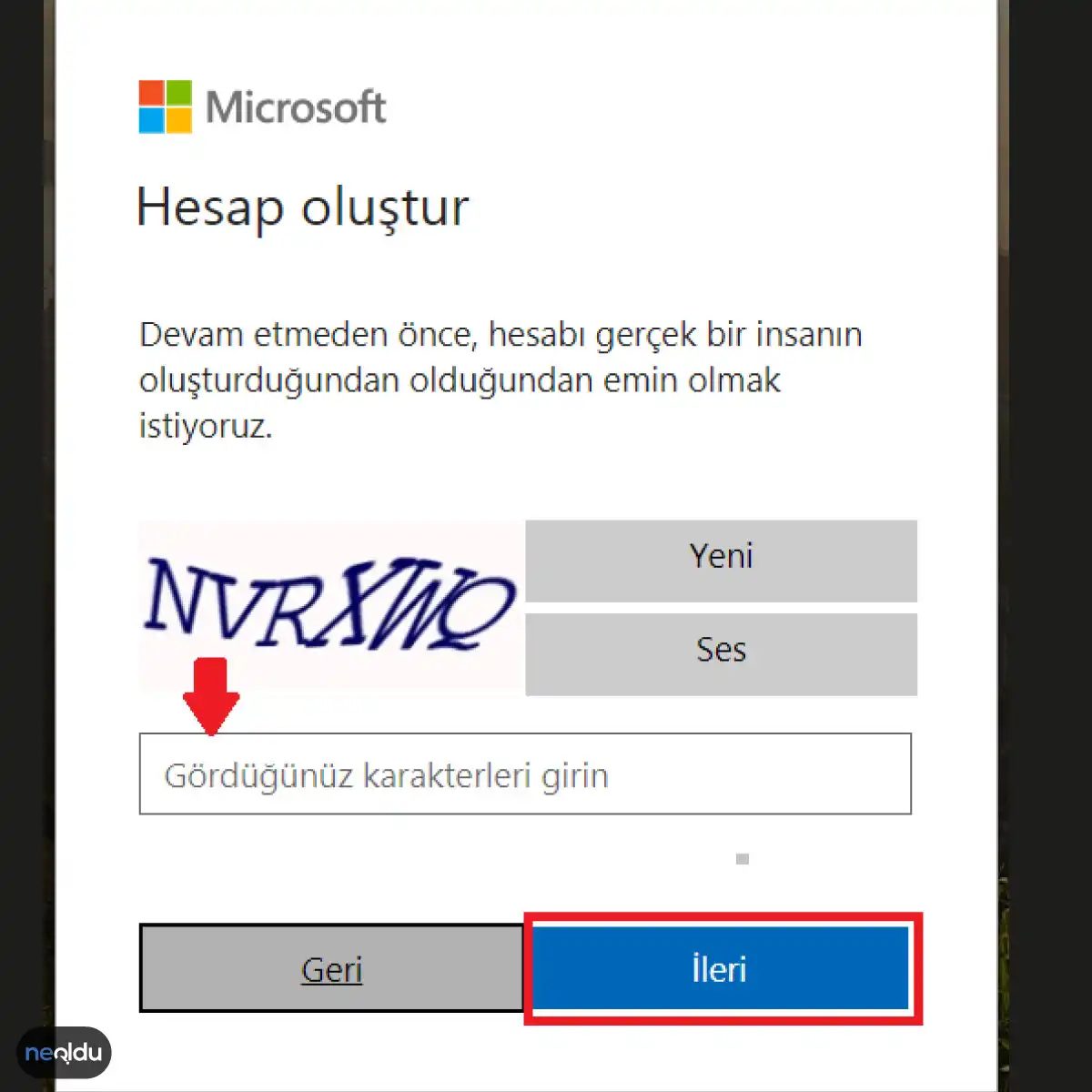
The security screen will auto-fill the character code. Just type it into the box. Click “Next.”
Logging into Hotmail and Outlook
You registered. Now you want to open your inbox. The process is straightforward. Follow the steps below to get in quickly.
Once inside, you can read messages. Send new ones. Manage contacts. Use all the Hotmail features. But here is the catch. Log out when you are done. Especially if you are on a shared device. Or a public computer. Leaving your session open is a security risk. Closing it matters.
1. Navigate to the Login Page
Go to the Hotmail to Outlook login page by clicking the provided link.
2. Enter Your Account Details
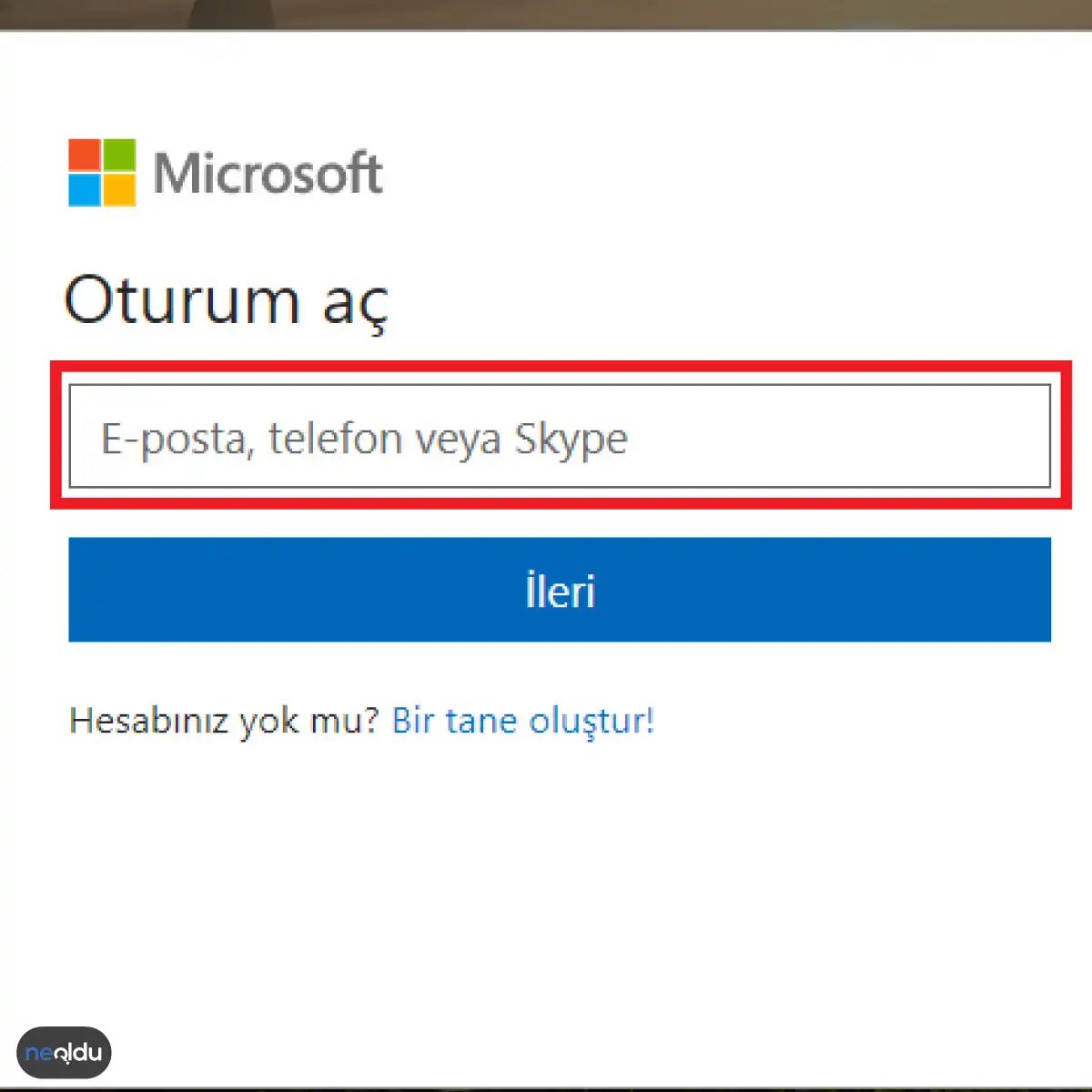
Create a strong password
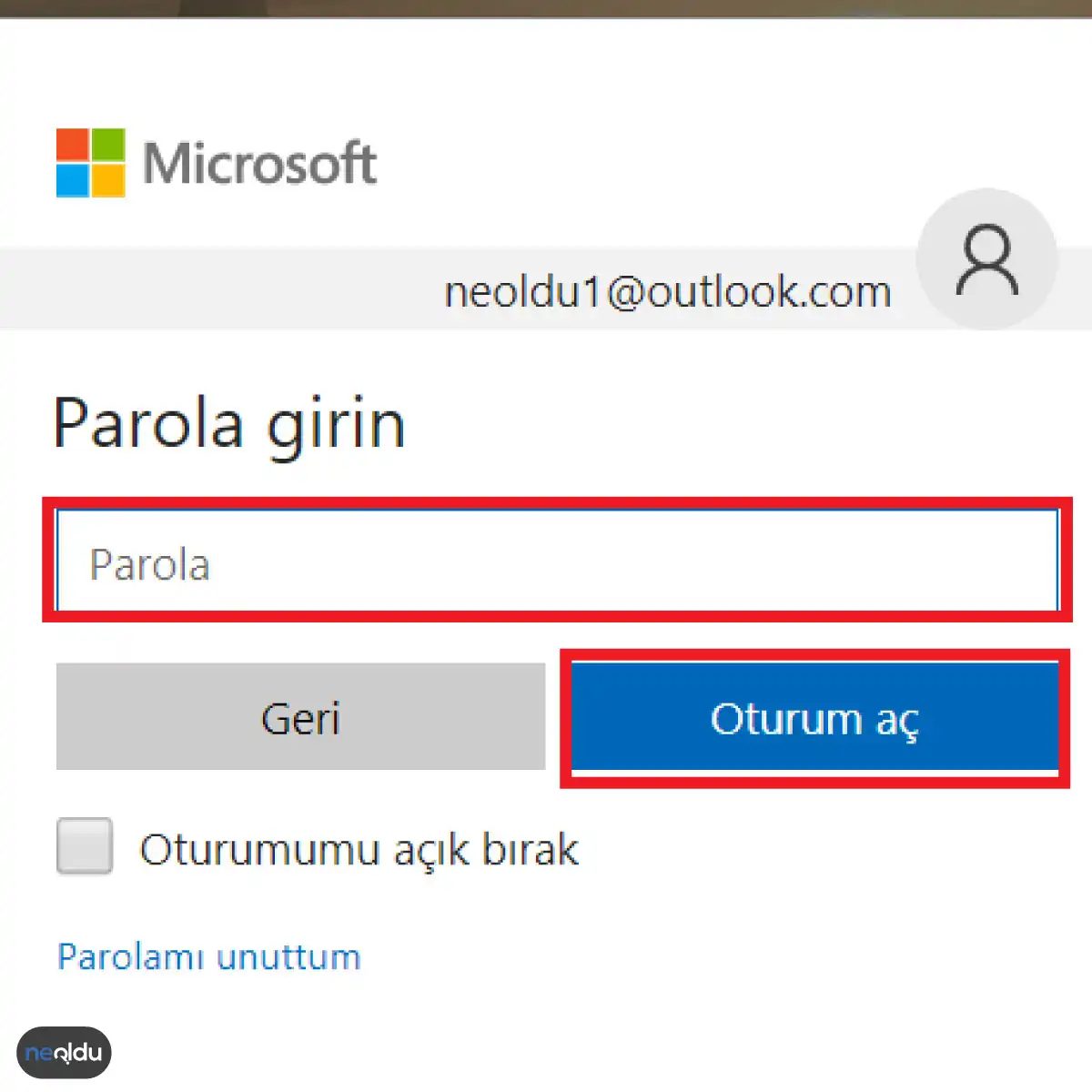
Now comes the part where you protect that account. The prompt asks you to input the password you chose earlier. Don’t just use “123456” or your dog’s name. If you’re reusing the credentials from that [email protected] address, make sure it’s one you actually remember and didn’t dump into a public pastebin years ago.
Microsoft’s password checker will be watching. It looks for complexity—uppercase letters, numbers, symbols. Ignore the pop-ups telling you to “create an even stronger password” if your current one already meets the baseline. You can always add a PIN or fingerprint login later for convenience, but for now, just get something robust in the field and move on.
Hotmail – Outlook Kullanmanın Avantajları
İşlemi bitirmek artık sadece bir tıklama meselesi. Giriş ekranına döndüğünüzde, daha önce belirlediğiniz şifreyi ilgili alana yazmanız gerekiyor. Çoğu kişi bu adımın basitliğini hafife alır. Oysa güvenlik bütünlüğü burada başlar. Şifrenizi doğru girdikten sonra, “Oturum Aç” butonuna bastığınızda sistem sizi karşılayacak.
Peki neden hala Hotmail denilir? Neden Microsoft bu kadar ısrarla Outlook markasını öne çıkarıyor? Cevap basit. Entegrasyon.
Tutarlılık ve Erişilebilirlik
Hotmail kullanıcıları yıllardır aynı adres yapısını kullanıyor. Ancak arka planda çalışan motor tamamen değişti. Microsoft, kullanıcı deneyimini standartlaştırmak için eski arayüzleri yavaş yavaş eledi.
- Tek Bir Hesap Yapısı: Eskiden ayrı duran @hotmail.com, @live.com ve @msn.com adresleri, artık aynı altyapıyı kullanıyor.
- OneDrive Entegrasyonu: E-postalarınızla birlikte dosya depolama alanınız da bu ekosisteme dahil.
- Takvim ve Kişiler: Outlook uygulaması, sadece e-posta göndermek için değil, yaşamınızı organize etmek için tasarlandı.
Neden Önemli?
Çoğu insan sadece e-posta gönderip alıyor. Bu bir hata. Modern bir e-posta hesabı, dijital kimliğinizin merkezi. Spam filtreleri daha akıllı. Arama fonksiyonları daha hızlı. Ve en önemlisi, iki faktörlü doğrulama gibi güvenlik katmanları varsayılan olarak daha sıkı.
Eski Hotmail arayüzüne alışkanlık kazanmış olsanız bile, yeni sistem size daha az gürültü sunuyor. Reklamların azaldığı, daha temiz bir kutu gelmesi alışkanlık bozucu olabilir. Ama verimlilik artışı belli.
Artık sadece bir e-posta servisi değil, bir yaşam merkezi ile karşı karşıyasınız. Bu geçişi kabul etmek, dijital yaşamınızın kalanını daha az stresli hale getirebilir.
Microsoft’un e-posta devleri Hotmail ve Outlook, günlük dijital hayatın merkezinde duruyor. Sadece bir mesaj kutusu değil, iş akışınızı düzenleyen bir merkez. Ama bu platformun gerçekten işe yaraması için sadece bir hesap açmak yetmez. Güvenliği anlamak, depolama alanını doğru kullanmak ve entegre araçları benimsemek şart.
Neden Outlook Güvenilir Bir Seçimdir?
Sorun yok, güvenlik endişeleri hâlâ var. Ama Microsoft, Hotmail yani Outlook platformunu kurumsal düzeyde koruma altına aldı. Hesap erişimi için iki adımlı doğrulama (2FA) gibi katmanlı güvenlik önlemleri standart hale geldi. Hassas verileriniz şifreleniyor. Sizin tarafınızdan yapılmamış giriş denemeleri anında engelleniyor. Bu, verilerinizin korunması konusunda ciddi bir adım.
Arayüzün Sadeliği ve Depolama Gücü
E-posta yönetimi bazen karmaşıklaşabilir. Outlook’un arayüzü buna karşı dirençli. Temiz. Dağınık değil. Gelen Kutusu, Gönderilenler, Taslaklar ve Arşiv gibi bölümlere tek tıkla ulaşmak mümkün. Bu sadelik, zamanınızı korur.
Peki ya depolama? Hesabınız geniş bir alan sunar. Binlerce e-postayı saklamanız sorun değil. Dosyalarınızı arşivleyebilirsiniz. Önemli bildirimleri veya faturaları kaybetme riskiniz neredeyse sıfıra iner. Büyük dosyaları e-posta ekinde göndermek yerine OneDrive linki paylaşmak daha akıllıca. Bu, hem kotasını doldurmaz hem de alıcının indirme sorunu yaşamamasını sağlar.
Takvim ve Kişilerle Entegrasyon
Outlook tek başına kalmaz. Hesabınızla birlikte gelen takvim ve kişiler yönetimi, hayatınızı kolaylaştırır. Randevuları planlarken e-postalarınızla senkronize çalışır. Bir toplantı daveti almak, takviminize otomatik olarak işlenir. Kişilerinizle iletişim kurmak daha hızlı hale gelir. Bu entegrasyon, iş ve kişisel hayat arasında köprü kurar.
Çapraz Platform ve Özelleştirme
İstediğiniz cihazdan erişim imkanı sunması büyük bir avantaj. Web tarayıcısı, mobil uygulama veya masaüstü istemci… Hangisini kullanırsanız kullanın, ayarlarınız senkronize kalır. E-postalarınıza her yerden ulaşabilirsiniz.
Ayrıca hesabınızı kişiselleştirebilirsiniz. Profil bilgilerinizi güncelleyebilir, e-posta imzanızı özelleştirebilir, bildirim tercihlerinizi düzenleyebilirsiniz. Bu küçük detaylar, platformu sizin için daha kişisel ve kullanışlı hale getirir.
Hotmail – Outlook Hesap Güvenliği ve İpuçları
Güvenlik sadece Microsoft’un sorumluluğu değil. Kullanıcı da dikkat etmeli. Güçlü bir şifre seçmek
The Outlook Security Trap You’re Probably Ignoring
You think you’re safe because Microsoft owns the platform. You aren’t. Hotmail and Outlook accounts are digital vaults for your most sensitive data. If you treat them like a mailbox in a quiet suburb, someone will kick the door down.
The reality is that Outlook account security isn’t about hoping for the best. It’s about building layers of friction against bad actors. Let’s cut through the marketing fluff and look at what actually keeps the hackers out.
It Starts with a Password That Hurts
Stop using “Password123”. Stop using your dog’s name. If your password could be guessed in under ten seconds, you’re already compromised.
You need a strong, unique password for every account. Not just any password. One that’s long, chaotic, and random. Mix uppercase letters, lowercase letters, numbers, and symbols. The longer it is, the harder it is to crack.
And here’s the part most people skip: never reuse passwords. If a hacker gets your LinkedIn password from a data breach, they will immediately try it on your Outlook account. Don’t give them the key.
Two-Factor Authentication (2FA) is Non-Negotiable
A password is just one layer. It’s the front door. Two-factor authentication (2FA) is the alarm system.
Enabling two-factor authentication for Outlook adds a second step to the login process. Even if someone steals your password, they can’t get in without the code sent to your phone or generated by an app.
It’s not complicated. It’s not time-consuming. It’s the single most effective thing you can do to secure your email. If you haven’t turned this on, you’re leaving a window wide open.
The HTTPS Requirement
When you log in, look at the URL bar. Does it say https://? If not, turn around.
Secure login (HTTPS) encrypts the communication between your browser and Microsoft’s servers. Without it, anyone on the same Wi-Fi network—coffee shops, airports, your own neighbor’s router—can sniff your traffic. They can see your credentials as you type them.
Make sure you are always on the secure version of the site. Modern browsers usually enforce this by default, but don’t trust them blindly.
Spotting the Phish
You’re probably getting spammed right now. It’s annoying. It’s also a trap.
Hackers send emails that look like invoices, package delivery updates, or urgent bank notices. They want you to click a link. Or download an attachment.
If an email feels “off,” it is. Check the sender’s address carefully. Hover over links before clicking. If it asks for your password via email, it’s a scam. Microsoft will never ask for your password in an email.
Keep your antivirus updated. A simple malware scan can catch what your eyes miss.
Watch for the Weird
Your account is a living thing. It changes. You send emails. You log in from new devices.
Set up alerts for suspicious activity in Outlook. If you get a notification that a login happened in a country you haven’t visited, or from a device you don’t recognize, act immediately.
Change your password. Force a logout on all devices. Check your settings to make sure no one has added a forwarding rule to send your emails to their inbox. Hackers love to stay quiet and copy your messages in the background.
Taming the Spam
You can’t stop the spam entirely. But you can manage it.
Outlook and Hotmail have built-in spam filters. Make sure they’re active. Learn to mark junk mail as spam. The more you do it, the smarter the filter gets.
Keep your inbox clean. A cluttered inbox is a blind inbox. You’ll miss the real threats if you’re wading through noise every day.
Common Questions That Come Up
- Is it really free? Yes. Creating a Hotmail or Outlook account costs nothing. There is no premium tier for basic storage and security features.
- Can I use my old Hotmail on the new site? Absolutely. Your old
@hotmail.comaddress works perfectly on Outlook.com. The platform has merged, but the identity remains. - Where do I find the security settings? Go to your account profile, look for “Security,” and enable two-factor authentication. Add a recovery phone number and an alternate email address so you don’t get locked out.
- How do I organize my mess? Use the checkboxes in your inbox. Select multiple emails with
Ctrl(orCmdon Mac). Delete, archive, or move them to folders. Use the search bar to find specific threads. Tagging helps too. - How do I send files? Start a new message. Look for the paperclip icon or simply drag and drop files from your computer into the email body. They’ll attach automatically.
You have the tools. The settings are there. The question isn’t whether the technology works. It’s whether you’re willing to actually use it.
Most people don’t. They click “Remind me later.” They skip the setup. They assume they’re too small to be targeted.
They’re wrong.
The internet doesn’t care about your intentions. It only cares about weaknesses. Fix yours before someone else does.